Pages

Showing posts with label Android Tricks. Show all posts

Tuesday, 19 June 2012

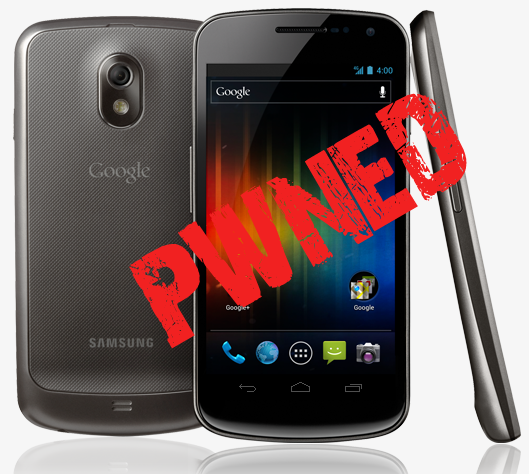
ROOT GALAXY NEXUS ON ANDROID 4.0.2 ICS WITH CF-ROOT [HOW-TO TUTORIAL]

Root Galaxy Nexus
Eminent Android developer and hacker Chainfire recently released his CF-Root tool for the Galaxy Nexusthat roots the device on Android 4.0.2 Ice Cream Sandwich, and we’ve got the step-by-step guide ready after the jump!

News of the root tool comes straight from XDA Developers – a popular forum for Android enthusiasts, developers and hackers – in the form of an official thread from developer Chainfire in which he discusses his tool and how enthusiasts like you can use to root their device.
From XDA:
This rooted kernel is for the "rooting beginners" and those who want to keep as close to stock as possible. CF-Root takes the kernel from an original firmware, and just adds root and busybox.
DISCLAIMER: Redmond Pie will not be held responsible if you lose data or your device gets damaged in the following of this guide. Proceed at your own risk.
Chainfire’s CF-Root tool does not come with a custom recovery like ClockworkMod Recovery, so you will have to flash it yourself. It’s a pretty simple procedure, and you can check it out in our post on how to flash ClockworkMod Recovery.
Step 1: Download the required kernel for your Galaxy Nexus:
You can check which version you should download by going to Settings > About phone and observing thebuild number.
Extract the .zip file.
Step 2: Ensure that your device is not connected to your computer.
Step 3: Download ODIN v1.85 [XDA Thread]. Launch it.
Step 4: Click on PDA and select CF-Root-xxx-vX.X.tar which you will find in the folder you extracted in Step 1.
Step 5: Switch off your Galaxy Nexus. Once it is completely shut down, press and hold Volume Down + Power buttons to boot into download mode.
Step 6: Once in download mode, connect your Galaxy Nexus with your computer.
Step 7: Ensure that you have not checked the Re-Partition option.
Step 8: Click on START and wait for your device to reboot.
If you followed the steps correctly, your Galaxy Nexus will now be rooted on Android 4.0.2 Ice CreamSandwich with Chainfire’s CF-Root tool.
If you have any queries, check out the official thread over on XDA.
You can follow us on Twitter, add us to your circle on Google+ or like our Facebook page to keep yourself updated on all the latest from Microsoft, Google, Apple and the web.

Sunday, 17 June 2012

how to bakup apps any smart phone?


    ROM TOOL BOX {root}*(DOWNLOAD HERE)


 ROM Toolbox combines all the great root apps all tied up into one monster app with a beautiful and user-friendly interface. It also adds many more unseen features!
This app requires root permission.

**************


FEATURE LIST:
**************

==== TOOLS ====           (DOWNLOAD HERE)


-- ROM Manager --
☆ Install full ROMs and other zips from a growing list of ROMs
☆ Create, manage and restore nandroid backups
☆ Wipe data, cache, dalvik-cache, battery stats
☆ Install a ROM from your SD card

-- App Manager --
☆ Batch backup & restore
☆ Automatically backup apps when they are installed
☆ Automatically delete backups when uninstalled (off by default)
☆ Send backups via gmail/email or dropbox
☆ Sort backups by already installed, same as installed, older versions, etc.
☆ Backup/restore app data
☆ Backup/restore Android Market link
☆ Task manager
☆ View memory usage
☆ Show/hide different processes
☆ Automated batch uninstaller
☆ E-mail your apps to friends
☆ Share with other applications which accept text (SMS, facebook, google reader, etc...)
☆ Move *any* user app to the SD card
☆ Freeze/Defrost system & user apps
☆ Market Doctor (Link *any* app to the Android Market)
☆ Break market links
☆ Clean up dalvik-cache
☆ Zipalign all apks
☆ Fix permissions on all apps
☆ Wipe data or cache for apps
☆ Force close apps

-- Root File Browser --
☆ Access the whole of android's file system (including the elusive data folder!).
☆ Batch copy/paste, zip, tar, delete, move any file or folder
☆ Change file permissions and ownership
☆ View, edit and share files
☆ Add new files & folders in any directory

-- Scripter & Terminal Emulator --
☆ Create and run scripts as root
☆ Download & run new scripts from an ever-growing list

-- Auto Start Manager --
☆ Enable/disable apps that run on start-up
☆ Enable/disable any intent/action apps receive

-- Ad Blocker --
☆ Choose to block ads, porn, casino & risky sites
☆ Add new sites to the hosts file
☆ Use custom IP

-- Configure Apps2SD --
☆ Select the default install location for apps

-- Rebooter --
☆ Reboot recovery, powerdown, bootloader, restart status bar, etc.

GUYS I WILL TEACH SOME TRICKS (NEWBIES)  USING THIS TOOL
 1 HOW TO REMOVE UN WANTED APPS (BE CAREFULL WHILE REMOVING ; REMOVE WHAT U KNW IS A CRAP


WHEN U OPEN IT  U WILL SEE THIS 

 SELECT APP MANAGER
 I AM TAKING EXAMPLE OF  WEATHER CLOCK HOLD AND PRESS UNTILL DAILOG BOX COMES AND SEARCH FOR UNIINSTALL AND OK THEN AGAIN YES TO REMOVE IT
 NOW HOW TO FREEZE SELECTS APPS THAT EATS UR RAM AND FOLLW SAME STEPS ABOVE GIVEN BUT THIS TIME SELECT FREEZE NOW IT WILL GET FREEZE
 THE FROZEN APPS COULDNOT BE SEEN IN MEANU REMEMBUR THIS
  NOW HOW TO UNFREEZE JUST SLIDE THE TABS TO LEFTMOST U WILL SEE FROZEN TAB SELECT IT

NOW U WILL SEE THE FROZEN APP LIST AND NOW U CAN UNFREEZE THEM BY SAME STEPS 


SAMSUNG BLOATWARES R - CALENDER,WEATHER,GTALK,ETC
FREZEE THESE IF U R USING CUSTOM ROM -UPDATE PROCESS , SAMSUNG ACCOUNT ,ETC
    
HOPE THIS WILL HELP U  
ENJOY 

Pages